

Table of Contents
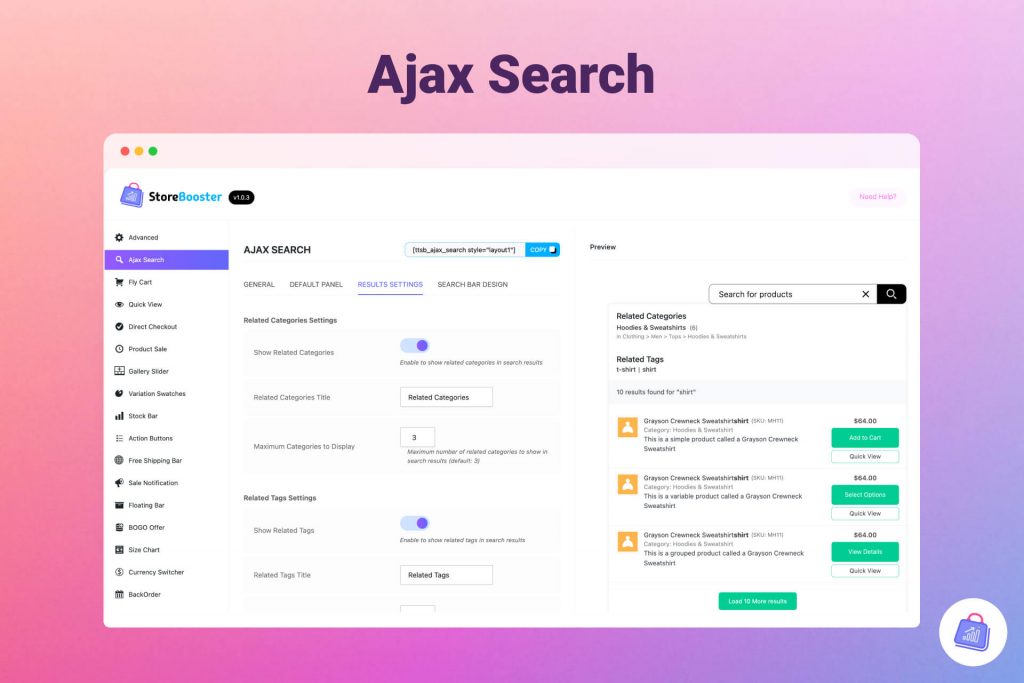
WooCommerce AJAX Search Optimization is one of the fastest ways to improve how shoppers find products and move to checkout. If visitors cannot discover items quickly, they leave, compare elsewhere, and your store loses intent-driven revenue. This guide shows how to implement WooCommerce AJAX Search Optimization with StoreBooster free and pro features, including analytics, synonyms, voice search, and multilingual logic, so you can improve product discovery, reduce no-result searches, and grow conversion in a measurable way.
Why WooCommerce AJAX Search Optimization Matters
Most buyers do not browse deeply before making a decision. They search. That is why WooCommerce AJAX Search Optimization directly impacts user experience, bounce rate, and sales quality.
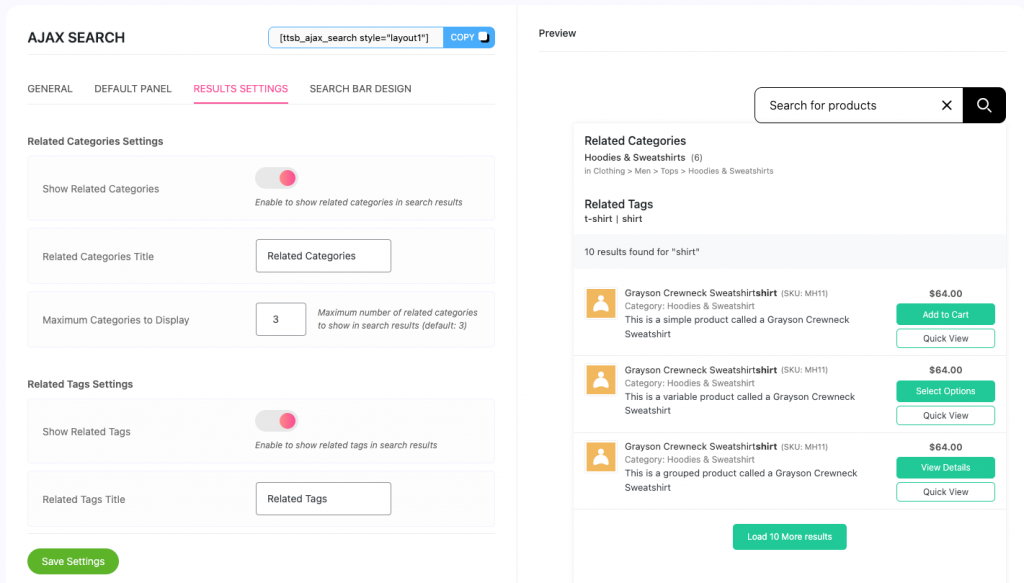
With a WooCommerce live search experience, users get instant visual feedback while typing. This reduces friction, helps people refine intent faster, and increases the chance of adding products to cart without distraction.
From a business perspective, search traffic is high intent. A visitor who uses site search is usually closer to purchase than someone casually browsing category pages. Improving search relevance can therefore increase revenue without increasing ad spend.
If you are evaluating an AJAX product search plugin, focus on three outcomes: speed, relevance, and actionability. StoreBooster covers all three through modular free and pro capabilities.
Core Free Features You Should Configure First
Start your WooCommerce AJAX Search Optimization rollout with a strong free baseline. These settings alone can deliver significant gains.
1) Real-time AJAX result rendering: Instant result updates while users type improve discovery speed and reduce unnecessary page loads.
2) Flexible placement options: Use shortcode, widget, or menu placement based on user behavior and theme layout.
3) Search field control: Enable relevant fields like title, SKU, content, categories, tags, and attributes to align results with your catalog type.
4) Replace default theme search: If theme search is basic, replace it with StoreBooster search for a modern, consistent UX.
5) Rich result cards: Show title, image, price, SKU, quick view, and add-to-cart actions to shorten decision time.
6) Default panel and load more behavior: Show helpful pre-search content and progressively reveal additional results for better performance.
This foundational configuration supports better WooCommerce search conversion because shoppers can find and evaluate products faster.
Pro Features That Drive Higher ROI
When your store has meaningful search volume, pro features become critical for advanced WooCommerce AJAX Search Optimization.
Search Analytics (Pro)
You get practical search analytics for WooCommerce: top searches, top clicked products, and no-result terms. This data lets you optimize real buyer intent instead of guessing.
Synonym Manager (Pro)
A WooCommerce synonym manager helps map alternate wording and misspellings, such as hoodie, sweatshirt, and pullover. This reduces dead-end queries and improves WooCommerce product discovery.
Voice Search (Pro)
Voice search WooCommerce workflows are especially helpful on mobile. Users can speak fast intent and receive immediate product matches.
Fuzzy Search (Pro)
Fuzzy search WooCommerce support catches typo-heavy and imperfect queries, improving match quality and reducing lost demand.
Multilingual Search (Pro)
A multilingual WooCommerce search setup ensures better relevance for multi-language catalogs and international shoppers.
Search Analytics and Synonyms Manager are the main feedback loop for improving relevance: the dashboard shows what people type, what they click, and where searches fail; Synonyms Manager and catalog updates turn that insight into better matches. Voice search, fuzzy matching, and multilingual options extend coverage for how real shoppers phrase queries. The next two sections explain Search Analytics first, then Synonyms Manager in depth, in that order so you read measurement before action.
Search Analytics Dashboard (StoreBooster Pro)
The Search Analytics Dashboard helps you see how visitors actually use AJAX search so you can improve results and revenue with evidence instead of guesses.
Filter by date range
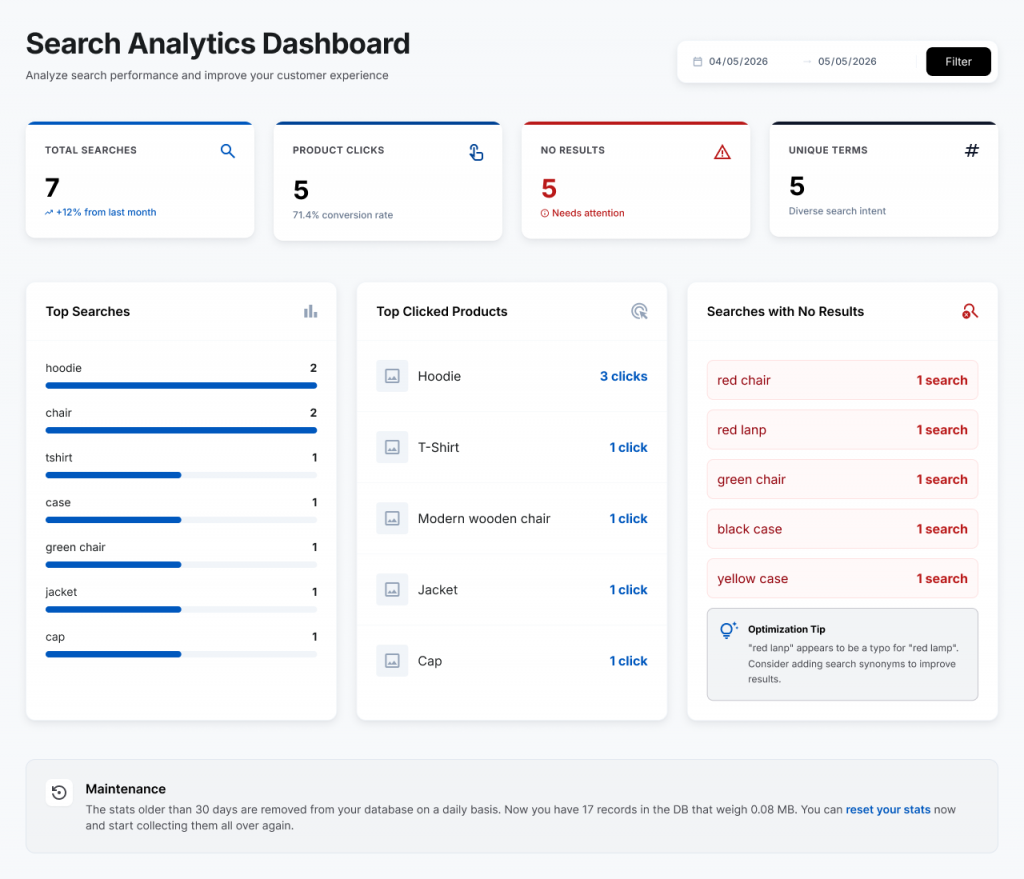
At the top of the dashboard, choose a start and end date (for example 04/05/2026 through 05/05/2026) and click Filter. All cards and lists below reflect only searches and clicks that occurred in that window, so you can compare weeks, campaigns, or seasons.
Summary statistics (KPI cards)
Four headline metrics give you a quick health check:
- Total Searches — how many search actions ran in the period. Trend text (for example versus last month) helps you see whether discovery volume is growing.
- Product Clicks — how often shoppers clicked a product from search results. Together with total searches, you can read an effective click or conversion rate from search to product engagement.
- No Results — how many queries returned nothing. When this number is high or flagged as needing attention, it is your clearest signal to fix catalog gaps, titles, synonyms, or fuzzy settings.
- Unique Terms — how many distinct search strings appeared. Higher diversity often means broader intent; very low unique terms with high volume can mean repeat demand on a few keywords.
Top Searches
The Top Searches view (often shown as a bar chart) lists the most frequent queries, for example hoodie, chair, tshirt. Use this to prioritize merchandising, landing content, and synonym groups for the language customers already use.
Top Clicked Products
Top Clicked Products shows which items users opened after searching, for example Hoodie with multiple clicks. That tells you which products win the first screen of results and which queries actually drive product interest, so you can tune ranking, stock, and bundles around real behavior.
No Results data and Synonyms Manager (the optimization loop)
Searches with No Results lists terms that failed to match products, such as red chair, red lanp, green chair, black case, yellow case. Each row typically shows how often that dead-end happened. That list is your backlog for fixes: add missing keywords to titles or attributes, create synonym groups (for example map lanp to lamp and related terms), enable or tune fuzzy search for typos, or add products that match common phrasing. The dashboard may also show optimization tips—for example suggesting that red lanp looks like a typo for red lamp and recommending synonyms—which ties analytics directly into Synonyms Manager actions.
Maintenance, retention, and reset
At the bottom of the dashboard, Maintenance explains how historical data is stored and pruned. Statistics older than thirty days are removed from your database on a daily basis to keep storage predictable. The screen also shows live footprint for the current dataset, for example that you have seventeen records in the database weighing about 0.08 MB (your numbers will change over time). If you need a clean baseline—for example after a major catalog migration—you can use Reset your stats to clear collected analytics and start collecting from zero again.
Synonyms Manager (StoreBooster Pro)
Once you have reviewed Top Searches, Top Clicked Products, and the No Results list in Search Analytics, Synonyms Manager is where you turn those findings into lasting query mappings—manually, by import, or both.
What are synonyms in search?
In e-commerce search, synonyms are alternate words or phrases that mean the same thing as what the shopper typed, or that you want treated as equivalent for matching products. Examples include regional terms (jumper vs sweater), abbreviations (tv vs television), common typos (lanp vs lamp), and product nicknames (sofa vs couch). Without synonyms, the index may only match exact catalog wording, so high-intent queries still return no results.
How Synonyms Manager works with StoreBooster AJAX Search
StoreBooster Pro stores synonym groups as a main word paired with a list of related terms. When someone runs a search, the module can expand the query: it looks at each meaningful word in the phrase, finds configured synonyms, and also supports reverse lookup (when the shopper types a synonym, the system can relate it back to your main term). Those expanded terms feed the AJAX search pipeline so more relevant products surface without renaming every product in your catalog.
Why it helps your store
You recover traffic from typos, jargon, and color or attribute phrasing that does not appear in titles. You align customer language with your merchandising. Together with fuzzy search and good product data, synonyms close the gap between what people type and what your WooCommerce catalog actually contains.
Where to manage synonyms
In WordPress admin, open StoreBooster and use the Synonyms Manager screen (under the StoreBooster menu). There you add entries, review the table of existing rules, and use import/export for bulk work.
Adding a new synonym group
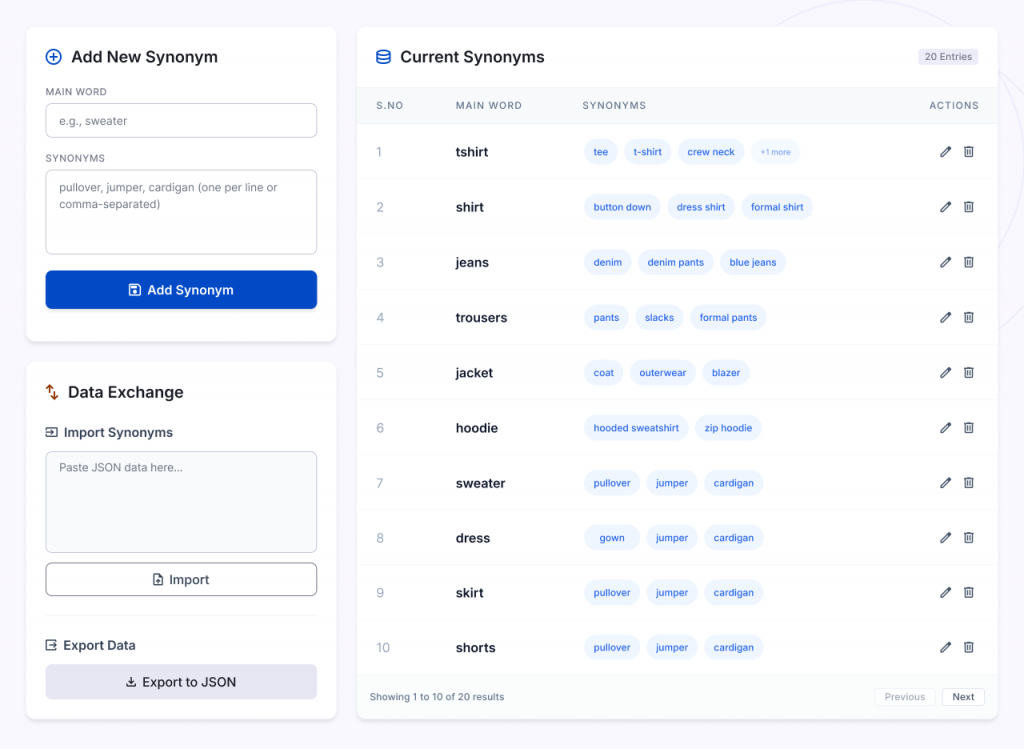
Use Add New Synonym: enter a Main Word (the canonical term you want to anchor the group, for example chair or lamp). In Synonyms, list every alternate you want to treat as equivalent—one per line or comma-separated, for example pullover, jumper, cardigan. Save to add the row to your active configuration.
Managing existing synonyms (edit and delete)
Current Synonyms appears as a table with Main Word, Synonyms, and Actions. Use Edit to change the main word or the synonym list (useful when the Search Analytics No Results list or optimization tips surface a new typo or regional term). Use Delete to remove a whole group when it is wrong or no longer needed. After changes, search behavior updates for new queries; cached synonym data refreshes on save so storefront search picks up the new rules.
Importing synonyms from JSON
Under Import/Export, paste valid JSON into the import field and run Import. The file must be a single JSON object whose keys are main words (strings) and whose values are arrays of synonym strings—the same shape as Export to JSON produces. Import merges with your existing synonyms: new keys are added; existing keys are updated with the imported lists. If JSON is invalid or empty, the importer reports an error instead of wiping your data.
Example JSON for import
Below is a minimal example you can paste and adapt. It maps common no-result style queries to catalog-friendly terms (including a deliberate typo mapping for lamp, similar to analytics tips like red lanp to red lamp):
{
  "lamp": ["lanp", "light", "bulb", "desk lamp"],
  "chair": ["red chair", "green chair", "seating", "stool"],
  "case": ["black case", "yellow case", "phone case", "cover"],
  "hoodie": ["hoody", "sweatshirt", "pullover"]
}
You can also use a string value for a synonym list in some imports (comma-separated); arrays are the clearest format for version control and sharing with your team.
Practical Setup Workflow for Better Results
Step 1: Baseline setup: Enable free features, configure field priorities, and publish the best search bar placement.
Step 2: UX tuning: Optimize result card structure, default panel behavior, and load-more settings for clarity.
Step 3: Pro activation: Enable analytics, synonyms, voice, fuzzy logic, and multilingual controls.
Step 4: Weekly optimization loop: Review no-result reports, update synonym mappings, and improve product titles using search intent patterns.
Step 5: Conversion monitoring: Track add-to-cart behavior and click-through from search results to measure impact.
This repeatable loop improves no-result keyword optimization and long-term search performance.
Upgrade to Pro
If your store is growing, upgrading is not just a feature decision, it is an optimization decision.
Upgrade when:
- no-result queries increase regularly
- search traffic grows but conversions lag
- merchandising decisions need analytics-backed insight
- multilingual and typo tolerance become business-critical
StoreBooster Pro turns WooCommerce AJAX Search Optimization into a data-driven growth system with analytics, intent matching, and conversion-focused controls.
Start with free for baseline performance, then upgrade to pro when you need scale, precision, and stronger ROI from search traffic.
Conclusion
WooCommerce AJAX Search Optimization works best when treated as an ongoing optimization channel, not a one-time UI tweak. Build your baseline with free features, then scale with pro analytics and intelligence layers. Use search behavior data to improve relevance, reduce dead-end queries, and increase high-intent conversions over time. When executed this way, search becomes one of the most profitable parts of your WooCommerce growth strategy.